
ImageGPT Image 2
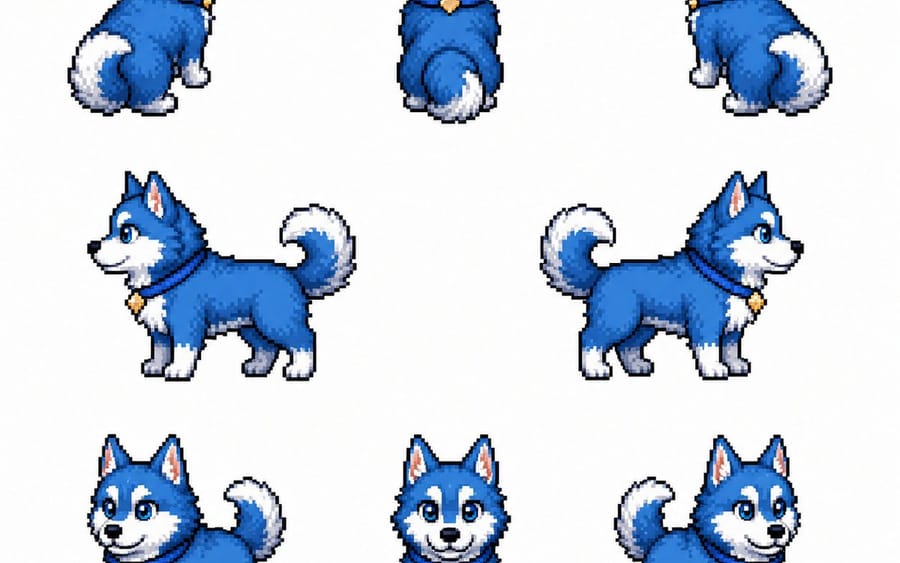
Blue Husky Pixel Sprite Sheet
Generates a cute blue husky puppy pixel-art turnaround sheet for game character sprites or asset design.
Prompt
Goal: Create a clean pixel-art character sprite sheet for a cute {argument name="animal character" default="blue husky puppy"}, showing the same character from multiple angles for game asset use.

Canvas: Square 1:1 image on a plain white background, with generous spacing between sprites and no text, UI, shadows, props, or border.

Layout: Arrange exactly 8 separate pixel sprites in a loose 3-row character turnaround sheet. Top row has 3 rear-view sprites: rear three-quarter facing left, straight back view, rear three-quarter facing right. Middle row has 2 side-profile sprites: left-facing full body and right-facing full body. Bottom row has 3 front-facing sprites: front three-quarter facing left, straight front view, front three-quarter facing right.

Subject details: The character is a small fluffy husky puppy with bright {argument name="fur color" default="deep cobalt blue"} fur, white muzzle, white eyebrows/cheek markings, white chest, white paws, and a curled fluffy tail with a white tip. Give it large friendly blue eyes, a small black nose, an open cheerful smile, pointed upright ears with pale pink inner ears, and soft rounded proportions. The puppy wears a dark collar with a small gold diamond-shaped tag visible on front and side views.

Visual style: High-quality retro pixel art, crisp black/dark-blue outline, visible square pixels, subtle dithering and highlights, compact game-sprite proportions, consistent lighting from upper left, vibrant saturated colors, polished 16-bit RPG creature sprite aesthetic.

Constraints: Keep all 8 sprites consistent in size, colors, collar, markings, and anatomy. Do not add labels, extra characters, scenery, gradients, or animation frames beyond the exact 8 visible poses.How to use this prompt
- 1Copy the prompt exactly, then paste it into your preferred model or Ideart project.
- 2Replace product, subject, audience, and style details with your own context.
- 3Generate one baseline result first, then remix the strongest direction into a campaign, image set, or video concept.
Explore nearby prompt paths
Model
Build from this prompt
Turn a image prompt into a finished creative project.
Save the prompt, add reference images or notes, and let Ideart shape the next production step from the same creative thread.