
ImageGPT Image 2
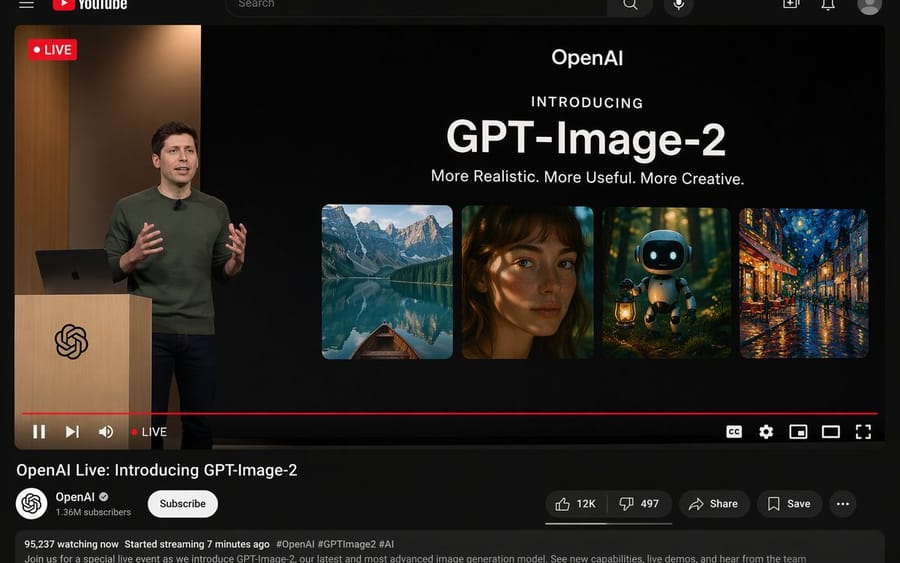
YouTube Live Stream Announcement Mockup
Generates a realistic YouTube dark mode interface showing a live product announcement presentation.
Prompt
{"type": "YouTube Live Stream UI mockup", "theme": "dark mode", "layout": {"top_bar": {"components": ["hamburger menu", "YouTube logo", "search bar", "microphone icon", "create icon", "notifications icon", "profile avatar"]}, "video_player": {"status": "LIVE badge in top left", "left_side": "A {argument name=\"presenter description\" default=\"man in a green sweater\"} standing at a wooden podium with a spiral logo, gesturing with hands, laptop on podium.", "right_side_presentation": {"text_elements": ["OpenAI", "INTRODUCING", "{argument name=\"product name\" default=\"GPT-Image-2\"}", "{argument name=\"tagline\" default=\"More Realistic. More Useful. More Creative.\"}"], "image_gallery": {"count": 4, "panels": ["mountain lake with a boat", "close-up portrait of a woman with dappled lighting", "cute robot holding a lantern in a dark forest", "impressionist painting of a glowing city street at night"]}}, "bottom_controls": {"components": ["play/pause", "next", "volume", "LIVE text", "red progress bar", "CC", "settings gear", "miniplayer", "theater mode", "fullscreen"]}}, "video_info": {"title": "{argument name=\"video title\" default=\"OpenAI Live: Introducing GPT-Image-2\"}", "channel_section": {"name": "{argument name=\"channel name\" default=\"OpenAI\"}", "badge": "verified checkmark", "subscribers": "1.36M subscribers", "button": "Subscribe (white pill button)"}, "action_buttons": {"count": 5, "labels": ["Like (12K)", "Dislike (497)", "Share", "Save", "..."]}, "description_box": {"metadata": "95,237 watching now, Started streaming 7 minutes ago", "hashtags": "#OpenAI #GPTImage2 #AI", "body_text": "Join us for a special live event as we introduce GPT-Image-2, our latest and most advanced image generation model. See new capabilities, live demos, and hear from the team ...more"}}}}How to use this prompt
- 1Copy the prompt exactly, then paste it into your preferred model or Ideart project.
- 2Replace product, subject, audience, and style details with your own context.
- 3Generate one baseline result first, then remix the strongest direction into a campaign, image set, or video concept.
Explore nearby prompt paths
Model
Build from this prompt
Turn a image prompt into a finished creative project.
Save the prompt, add reference images or notes, and let Ideart shape the next production step from the same creative thread.