
Image generation workflow · Live
AI image generator
Ideart AI Image Generator turns creative briefs, references, and campaign ideas into reusable image assets that can continue inside the project workspace.
Start a studio generation
Send a compact creative brief to the configured image model, then continue in the project workspace.
Quick start
Prompt, references, generation queue, reusable image assets
The prompt, up to 16 reference images, the aspect ratio and the finished images all stay on this page, and every result downloads at full resolution.
Text, with references optional
A written brief is enough to start. Attach up to sixteen reference images when the subject, product, or style has to be preserved.
Aspect ratio you choose
Pick the frame before generating — square for social, wide for banners, tall for stories — instead of cropping a square afterwards.
A downloadable image
Each result is a full-resolution file you can download, along with the prompt that produced it.
How it works
Use the tool as a repeatable creative workflow: choose a strong input, describe the change clearly, then review and iterate.
Write a focused image brief
Start with the subject, style, format, and production context. Strong image prompts give the model a clear visual target before you iterate.
Generate reusable image options
Create polished visuals for concepts, thumbnails, ads, product shots, or campaign directions, then compare the strongest outputs.
Continue in the workspace
Keep useful prompts, references, and generated images connected to the project so future variants and handoff work do not start from zero.
AI Image Generator examples
Prompts and results you can open, read, and reuse as a starting point.
AI image generator features and prompt control
Ideart AI Image Generator turns creative briefs, references, and campaign ideas into reusable image assets that can continue inside the project workspace.
Name the subject before adding style, lighting, and composition.
Start with the subject, style, format, and production context. Strong image prompts give the model a clear visual target before you iterate.
Use concrete format words such as portrait, product shot, thumbnail, poster, or concept art.
Create polished visuals for concepts, thumbnails, ads, product shots, or campaign directions, then compare the strongest outputs.
Mention brand, color, or identity constraints when they matter.
Keep useful prompts, references, and generated images connected to the project so future variants and handoff work do not start from zero.
Generate a few focused variants instead of mixing unrelated art directions.
Start with the subject, style, format, and production context. Strong image prompts give the model a clear visual target before you iterate.
The prompt has one main subject and one visual direction.
Create polished visuals for concepts, thumbnails, ads, product shots, or campaign directions, then compare the strongest outputs.
The output is sharp enough for the target placement.
Keep useful prompts, references, and generated images connected to the project so future variants and handoff work do not start from zero.
Brand, product, or character details are reviewed before reuse.
Start with the subject, style, format, and production context. Strong image prompts give the model a clear visual target before you iterate.
Final images are saved with enough context for later edits or video workflows.
Create polished visuals for concepts, thumbnails, ads, product shots, or campaign directions, then compare the strongest outputs.
Subject before style
Name the subject before adding style, lighting, and composition.
Name the format
Use concrete format words such as portrait, product shot, thumbnail, poster, or concept art.
State the constraints
Mention brand, color, or identity constraints when they matter.
A few focused variants
Generate a few focused variants instead of mixing unrelated art directions.
AI image generation for campaigns, thumbnails, and product shots
Ideart AI Image Generator turns creative briefs, references, and campaign ideas into reusable image assets that can continue inside the project workspace.
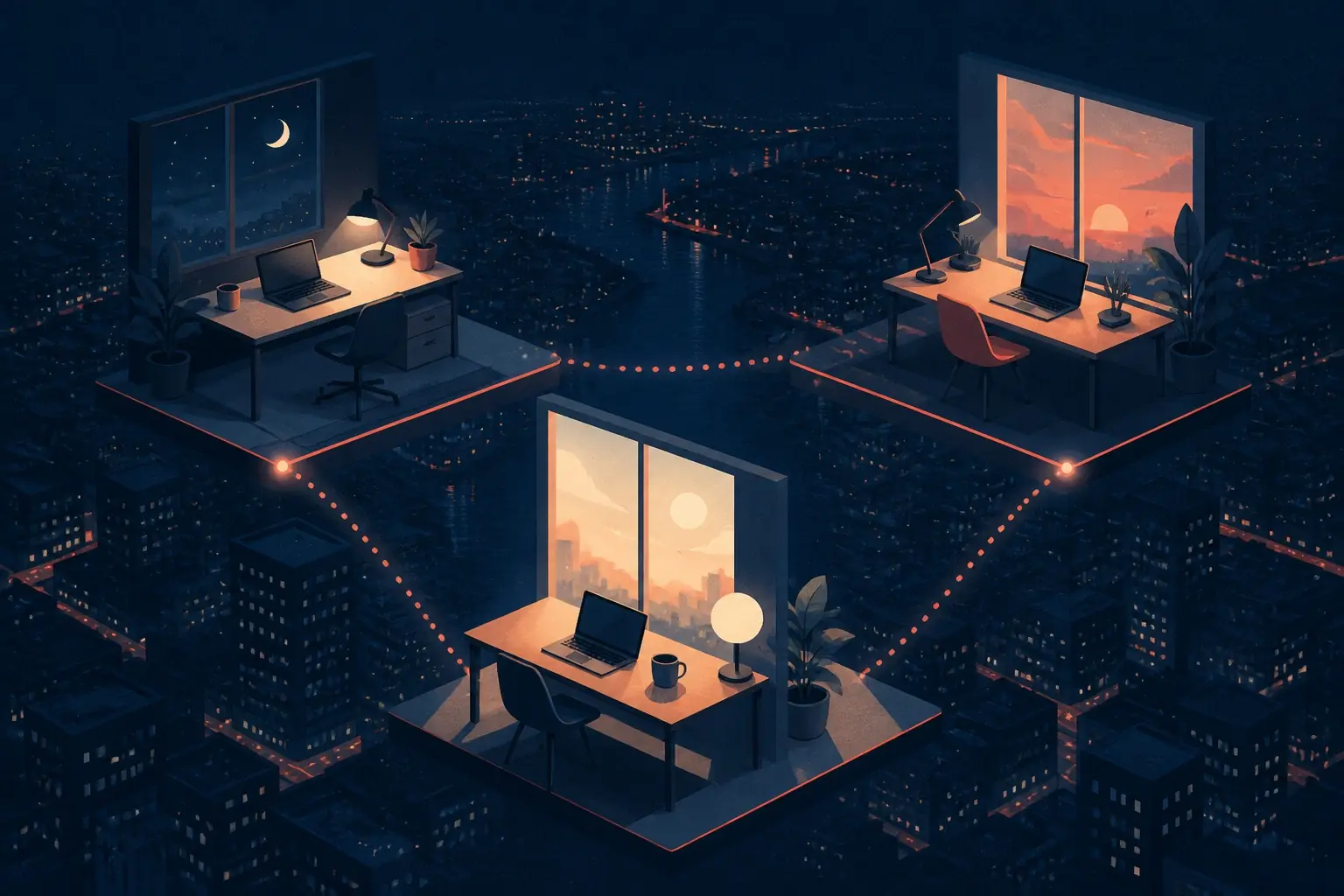
Generate campaign visuals
Start with the subject, style, format, and production context. Strong image prompts give the model a clear visual target before you iterate.
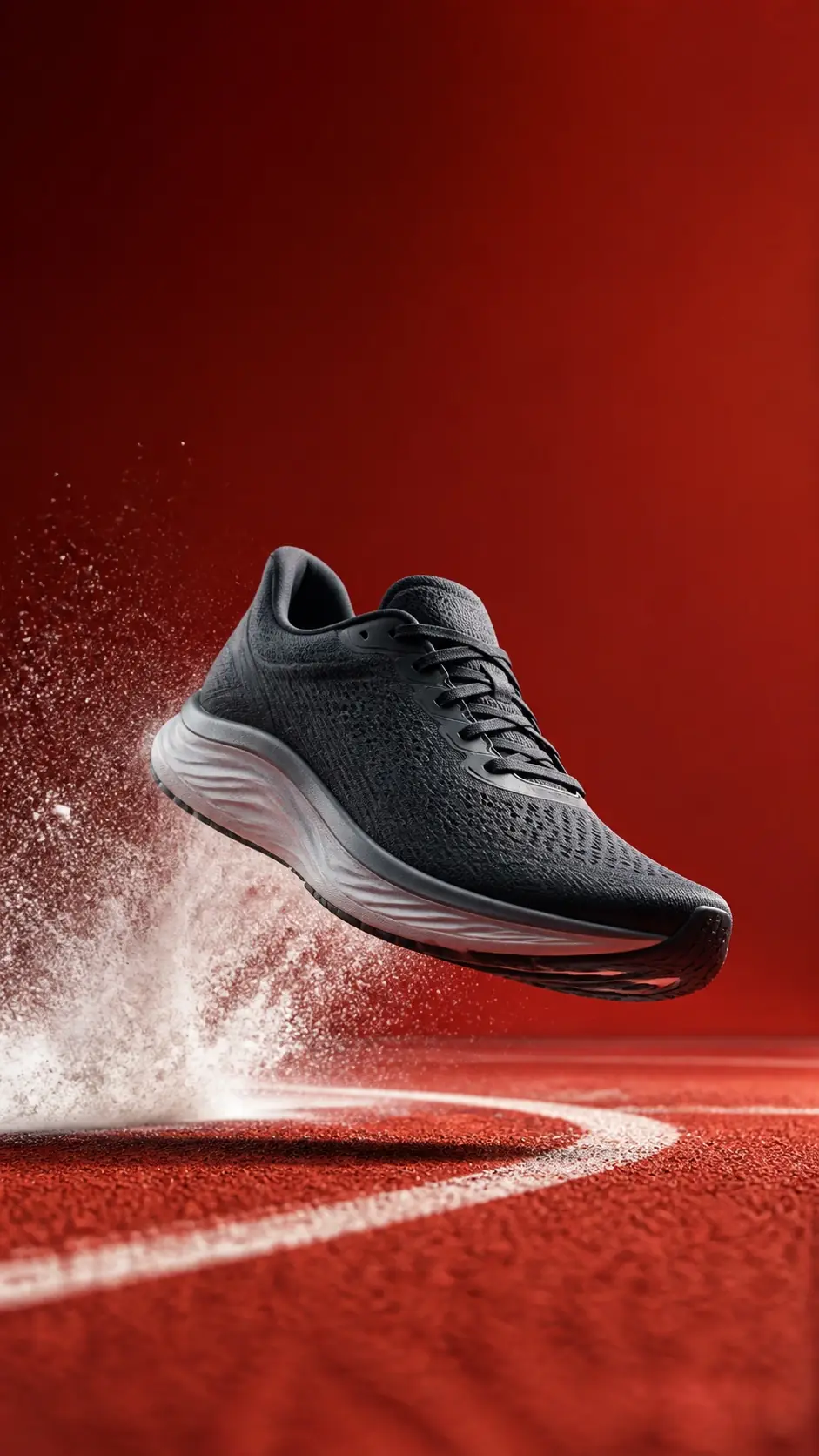
Create thumbnails and social graphics
Create polished visuals for concepts, thumbnails, ads, product shots, or campaign directions, then compare the strongest outputs.

Explore product image concepts
Keep useful prompts, references, and generated images connected to the project so future variants and handoff work do not start from zero.

Save image assets for later variants
Start with the subject, style, format, and production context. Strong image prompts give the model a clear visual target before you iterate.
Quality checklist
Generation is probabilistic. Treat the first result as material to review, not a finished asset.
- The prompt has one main subject and one visual direction.
- The output is sharp enough for the target placement.
- Brand, product, or character details are reviewed before reuse.
- Final images are saved with enough context for later edits or video workflows.
Related tools
Image to Image
Transform reference images into new styles, compositions, and production-ready visual variations.
Open toolImage to Video
Turn static images into cinematic AI videos with motion, camera direction, and optional prompts.
Open toolText to Video
Turn written prompts into short AI videos with scene direction, motion, and cinematic pacing.
Open toolAI image generator FAQ
What can I create with the AI image generator?
You can create campaign visuals, thumbnails, concept art, product-style images, and prompt-driven creative variants.
Can I continue editing generated images later?
Yes. Generated outputs can continue inside the project workspace where related prompts, references, and files stay together.
Is this the same as the new AI Studio workspace?
The old /ai-studio address now leads to this page. Generate here and the run continues in the Ideart workspace: the conversation is kept in your chats and every image lands in your library.
Start generating AI images
Generate polished AI images from prompts and continue organizing outputs in the Ideart workspace.